Administration
In this section we will describe all the administrative operations that are available to "Administrative" accounts configured in Filesight.
The administration sections are accessible from the side menu of Filesight, and access to specific sections is enabled based on the actual administrative permissions of each user. For example, a user might have access to file management but not to user management or vice versa.
Files
The core feature of Filesight is allowing controlled file sharing and preview, from a simple and accessible web interface.
The "Files configuration" section allows to manage folders, upload files and set access permissions.
Managing folders and files
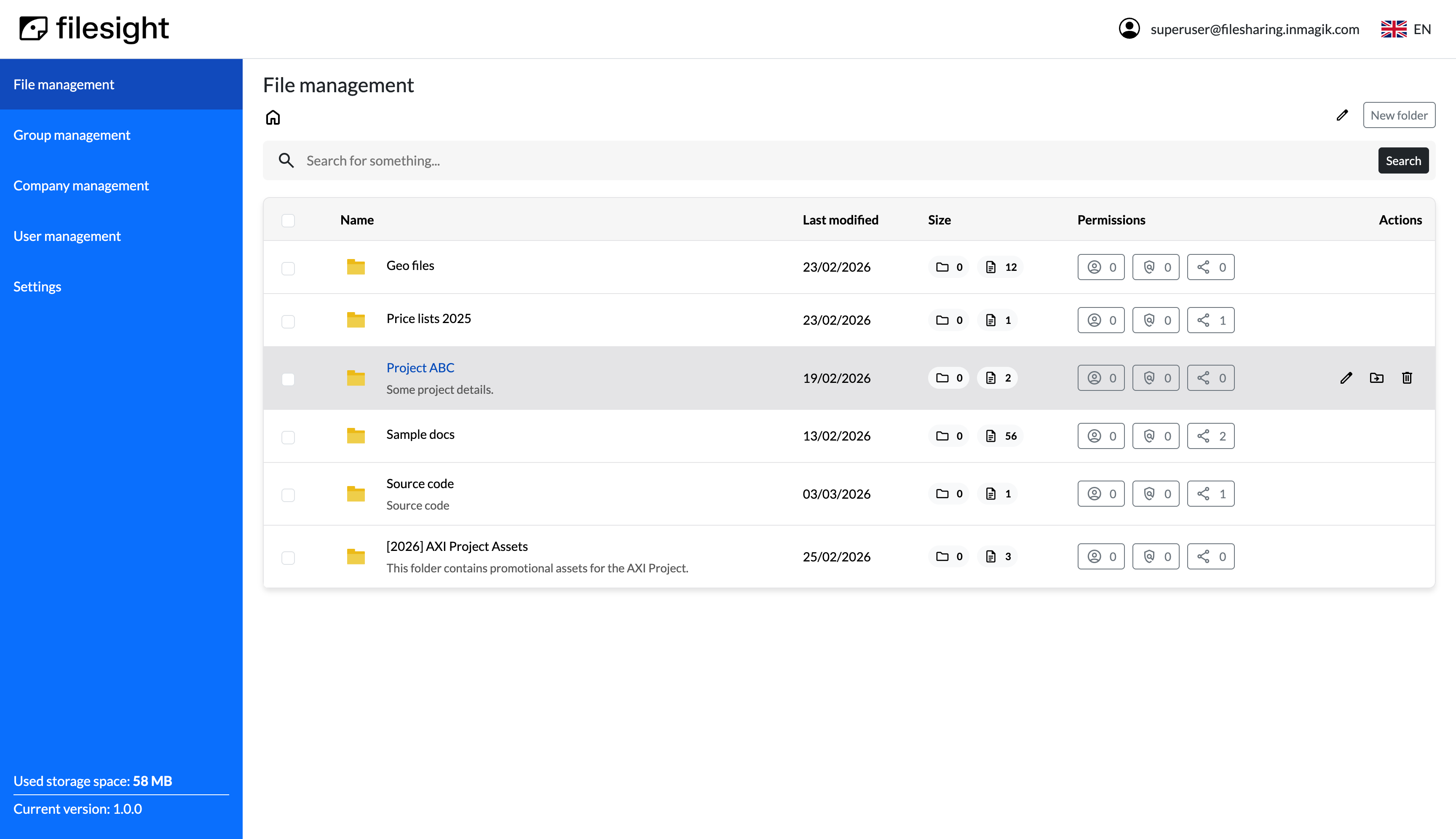
In general, files and folders are presented with an interface similar to a desktop file manager, with a list of items showing file name and some metadata such as size (for files) or number of contained files and folders (for folders).
When clicking on a folder name, you will navigate to folder detail and see files in that folder. In order to navigate back to the top folders, you can use the "Breadcrumbs" in the top part of the interface. Hovering on a folder listing, you will have access to other actions such as folder editing, deletion, and moving in the folders tree.
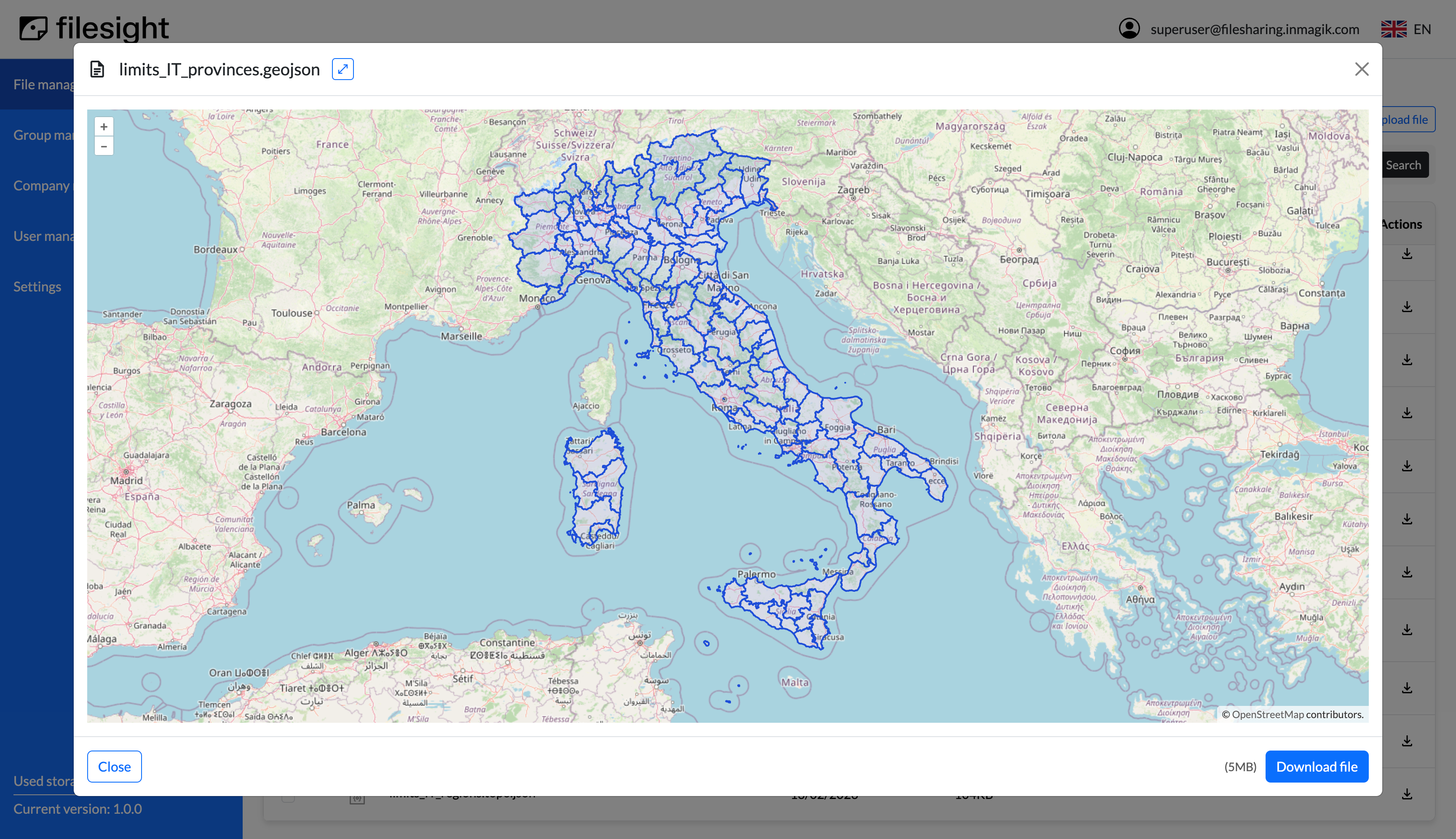
When clicking on a file name, a modal dialog will be open, showing a preview of the file (for about 50 file types), and allowing to download the file locally. File listings also have more actions available, such as the possibility to move files (changing the folder where they are contained), or deleting the file. These actions are available via a toolbar that will appear in the right part of the file listing, when hovering on a file item.
When exploring the "Files configuration" section of the Filesight interface, users with relevant permissions will see some buttons that enable actions on files and folders.
- Folder creation: a button in the top-right part of the interface will allow you to create a folder. In order to create a folder, you will need to enter a name, and optionally a description. This information can be edited later by using the "pencil" icon available near the folder.
Note
In the "home" folder of Filesight, you will be able to create folders, but not to upload files. Files must be uploaded into a folder, as the folder acts as the point of configuration of access permissions (permissions can be set on folders, not on single files).
Setting permissions
Access permissions are set from the Files management interface by using a specific set of buttons available in the interface.
Note
Granting access to files with group and user permissions or with quick share links are two different options. The first one requires you to register users on the platform, while access with quick share links will grant access to anyone that has access to that link. The use of these options strictly depends on your use case, but you can mix the two approaches.
Groups and users permissions
You can assign group and user permissions on any folder created on Filesight. This kind of permission requires that the final user (the one you want to share your files with) onboards and logs in to the Filesight platform.
Quick share links
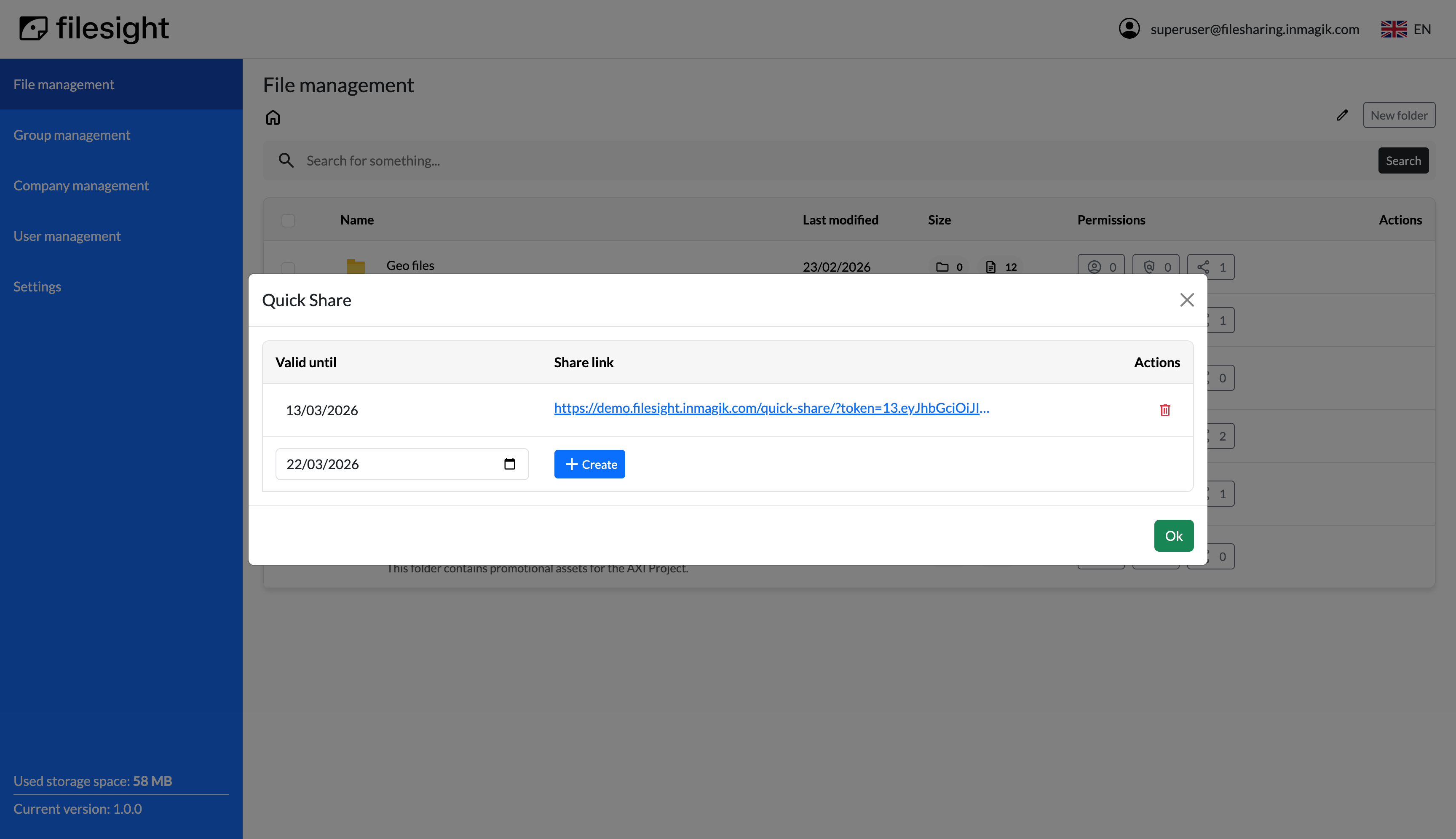
Another option for giving access to files is using "Quick share links". For each folder, a specific button will show the number of existing links and give access to the link creation and editing interface. Clicking this button, a modal dialog will open, listing available links and allowing to create new ones.
You can generate as many quick share links for each folder, and set an expiration date for any link. Links can be easily revoked from the same interface.
Warning
Even if a user has an account in Filesight, when clicking on an active quick share link, the "Viewer interface" will be presented, and will allow to navigate only in the folder for which the link was created.
Users
Account types and permissions model
Filesight has two kinds of user accounts:
- Administrators: users that manage files, permissions and accounts
- Viewers: users that are only allowed to browse files.
In addition, for administrative users it is possible to define specific permissions about:
- Files upload and management
- Folders management
- Accounts management
- Groups (permissions) management
- Advanced settings, such as email and storage configuration (see Configuration section for all options)
Info
Please note that, depending on the account type, Filesight users will access the "administration interface" or the "viewing interface".
Managing users
Users can be managed from the "Users management" section in the side menu. Once you access the section, the list of the current users will be shown, with a search bar for filtering users based on name or email address.
The list will show the user name, email, type of account, and company with which the user is registered.
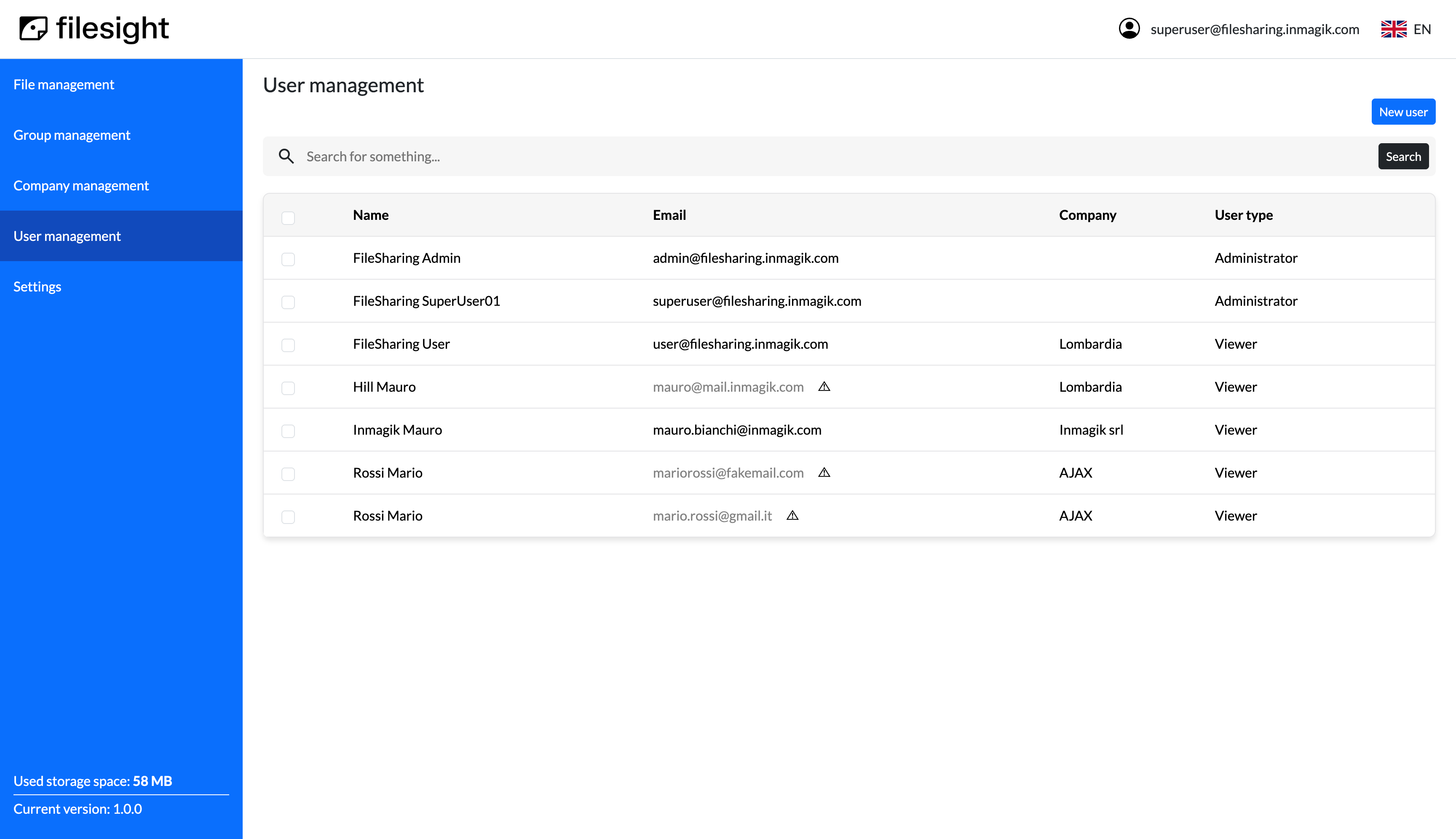
From the list you can proceed to a user detail, by clicking on the user name, or to the creation of a new user, by clicking on the "New user" button.
User creation process
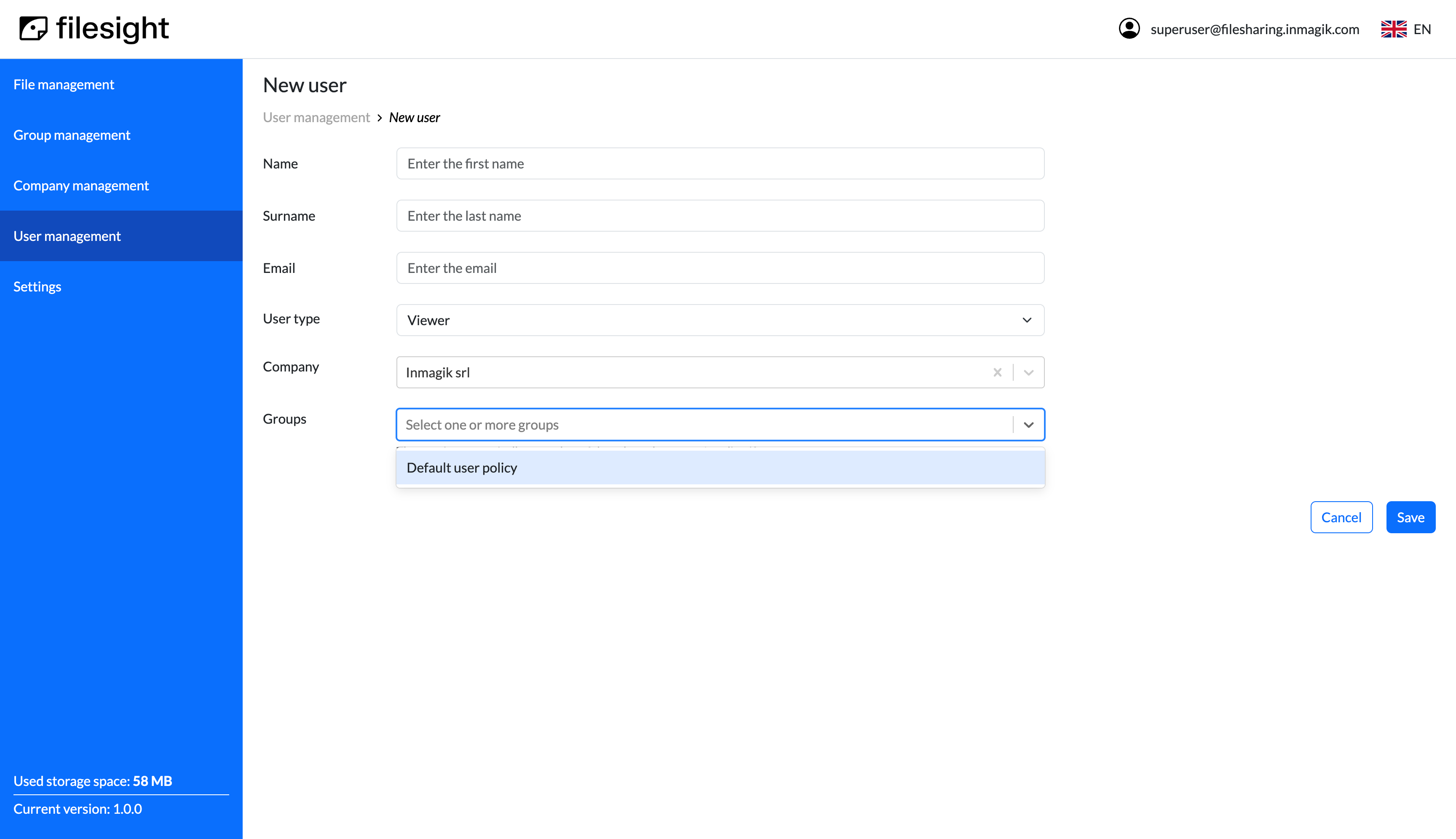
When creating users in Filesight, they are not immediately active, but must visit an "invitation link" in order to onboard the platform. The onboarding process will ask the new user to enter an access password, and confirm acceptance of the terms of service, if configured.
Companies
When creating and editing users, you can optionally assign the user to a company. This is not mandatory.
You can assign the user to existing companies or to a new company, by using the "Company" field. The field lets you search existing companies by entering a part of the company name. If the searched company is not present in the database, it will be automatically created when the user form is saved.
The company will act as a permission group (see next section for more details).
You can also manage companies from the dedicated "Company management" section accessible from the side menu of Filesight. Please note that you won't be able to delete companies associated to users. In order to do so, remove the association from users and you will be able to delete the company.
Permission groups and access logic
Permanent access to folders is managed using "permission groups" or by setting explicit user access permissions.
The access logic is the following: - For each folder, you can set one or more permission groups that will enable folder access for users associated to that group
You can create as many permission groups as you want, and associate users to them.
If a user has access to a folder, she will also be able to access all the subfolders and all the files contained. If a user has access to a subfolder, but not to parent folders, she will see parent folders to be able to navigate, but will not see files contained unless she has explicit access to the folder.
Groups management
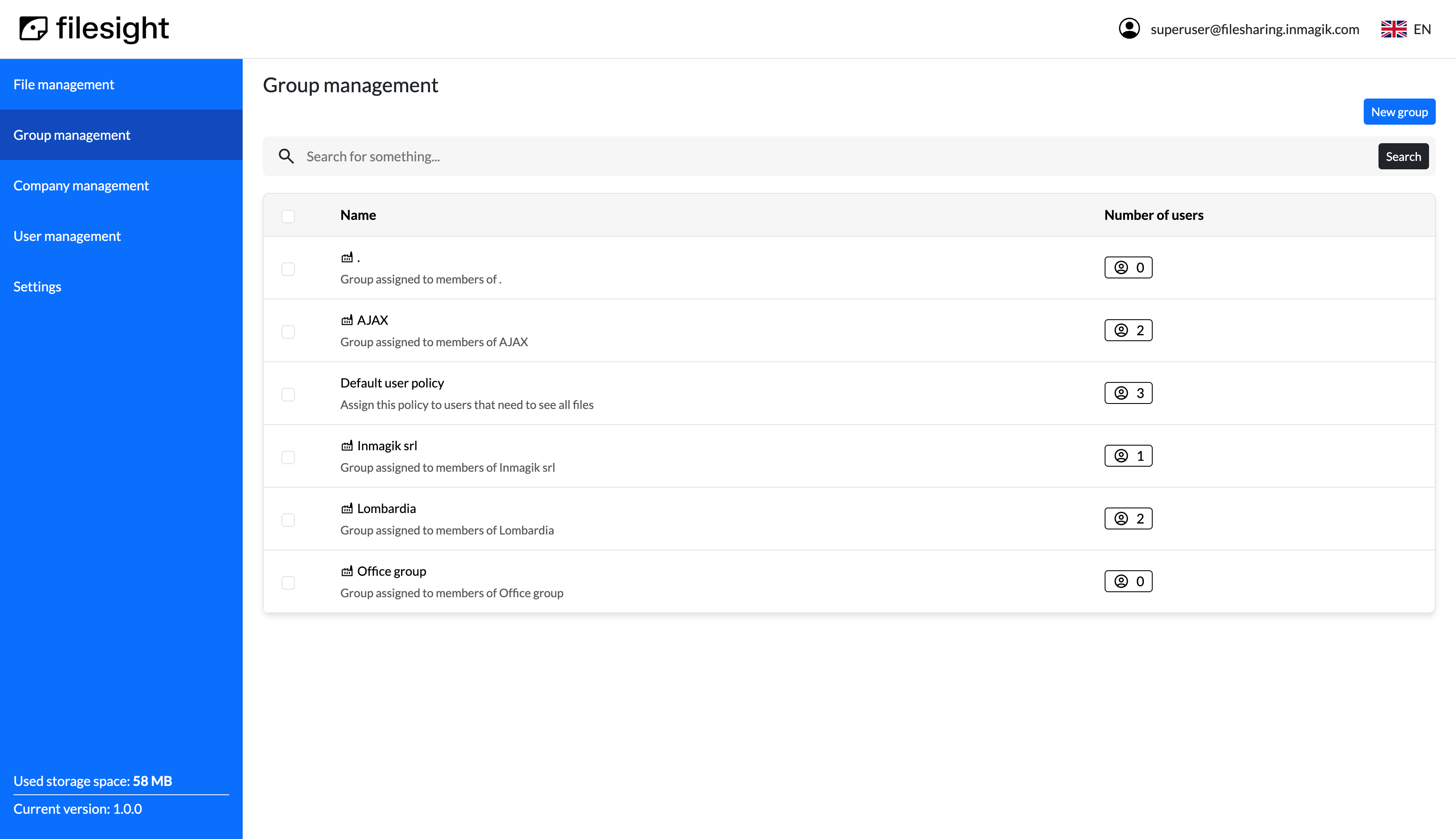
In order to create a permission group, navigate to "Group management" section in the Filesight interface using the menu on the left. You will see a list of existing permission groups, with the number of users associated. From the list, you can manage groups and their users.
Company groups
If you create companies and assign users to them, you will be able to use companies as permission groups. Please note that you won't be able to delete these groups. To do so, you will need to use the "Company management" section.
Once you delete the company, the related permission group will be automatically deleted.